
Complete Annotations in Three Steps: Upload, Drag, Input
Have you ever needed to add exact dimension notes to an image, but the thought of complicated software just put you off? Good news! With the BaseToolbox Image Dimensioning Tool, you already have most of the skills you need: uploading a file, dragging your mouse, and typing.
Yes, it really is that straightforward. Below, we'll break down these three intuitive steps, showing you just how easy it is to get professional results.
Step 1: Upload Your Image
Your Goal: Get your picture onto the canvas.
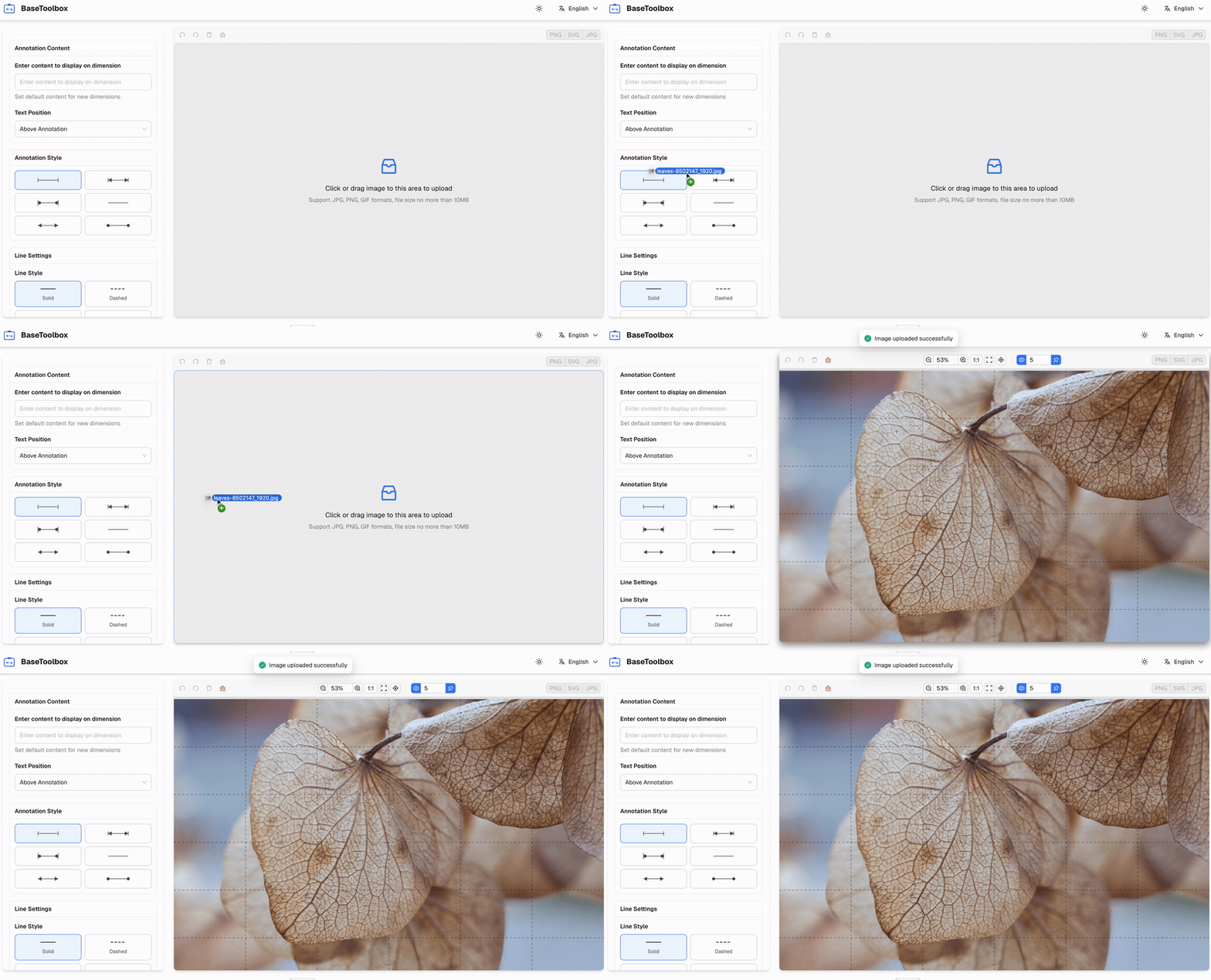
This is where all your amazing work begins. We offer two equally simple ways to get your image into the editor:
- Drag and Drop: Simply find your image file on your computer and drag it directly into the dashed area on the tool page.
- Click to Upload: Click anywhere inside that dashed box, and your familiar file selection window will pop up. Just locate and select your image.
Either method works instantly, and your image will appear in the editing area, perfectly ready for you to start annotating.
Step 2: Draw Your Dimension Lines
Your Goal: Clearly mark the distances you want to highlight.
Now, you need to show the exact measurements you're interested in.
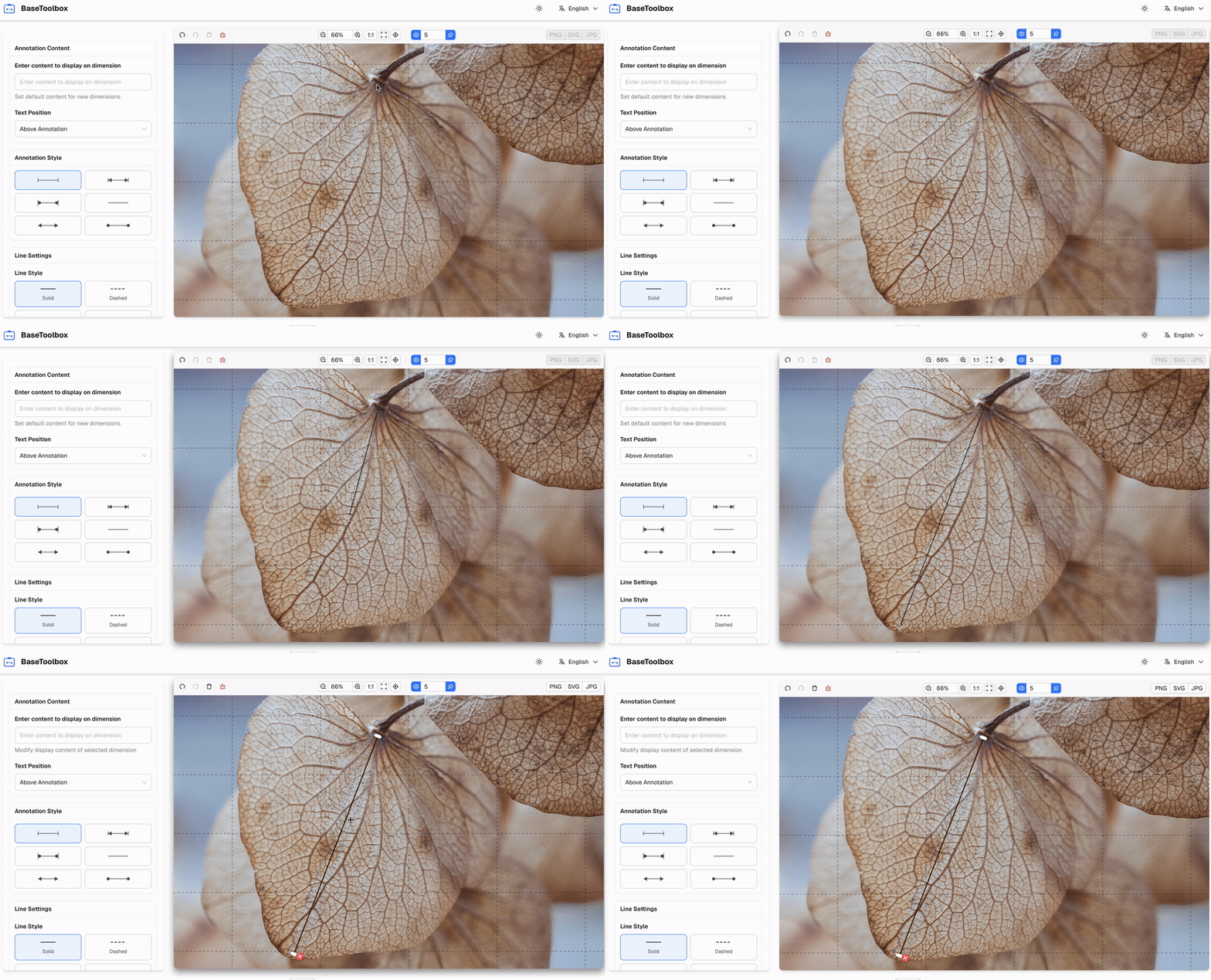
- Select the "Line" tool from the toolbar, usually found on the left side of your screen.
- Move your mouse to the starting point of your annotation (e.g., the top-left corner of a product).
- Press and hold the left mouse button, drag it all the way to the end point (e.g., the bottom-right corner), and then release.
Just like that, a perfect straight line appears. You can repeat this action to draw all the dimension lines you need for length, width, and height.
Step 3: Input Your Measurements
Your Goal: Write down the specific measurements for each line.
The final step is to clearly state the actual measurement that each line represents.
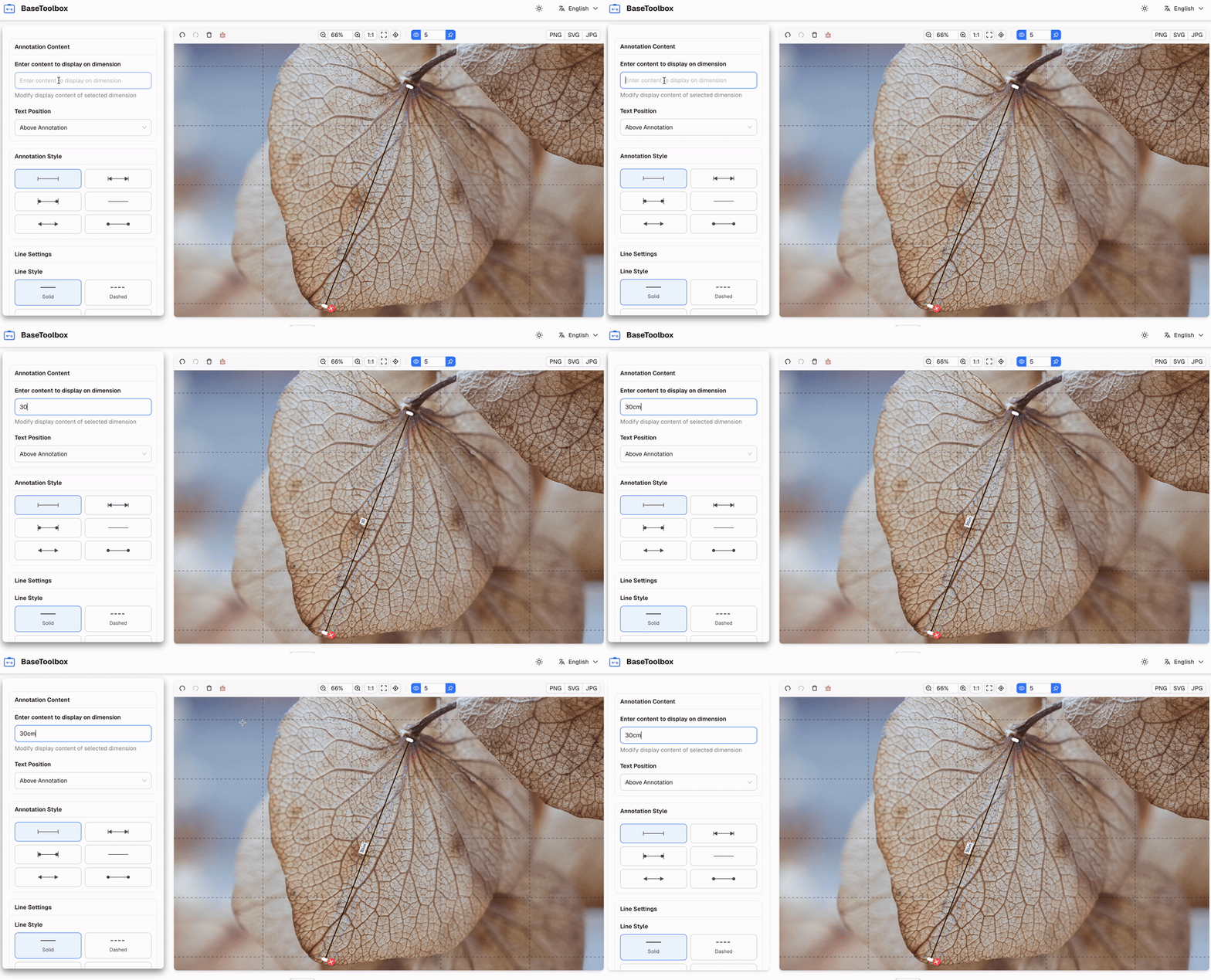
- Select the "Text" tool from the toolbar.
- Click directly next to a dimension line you just drew.
- A text box will appear. Type in your measurement, for example, "30cm" or "12 inches".
- (Optional) You can even adjust the text size and color in the properties panel on the right, ensuring it perfectly matches your brand's aesthetic.
All Done!
That's it. With just three intuitive actions—Upload, Drag, Input—you've created a professional dimension annotation image. Now, all that's left is to click the "Export" button and share your perfectly annotated work with the world.
Isn't it even simpler than you imagined? Open the tool now and experience it for yourself.
Ready to try it yourself?
Use our Image Dimensioning Tool now and enjoy a fast and efficient annotation experience.
Try the Dimension Tool Now