
How to Make a YouTube Banner in 2025 (The Easy Way)
Let's be honest: making a YouTube banner is annoying.
You spend hours designing something that looks perfect on your laptop. You upload it, and... disaster. The text is cut off on mobile. The logo is missing on desktop. And on TV? It's just a giant blurry mess.
YouTube's "one size fits all" approach—where a single 2560x1440 image has to work across three drastically different screen sizes—is a headache for creators.
But it doesn't have to be. In 2025, you don't need Photoshop or a degree in graphic design to get this right. Here is the stress-free guide to nailing your channel art.
Understanding the "Safe Area" (The Secret Sauce)
The trick to a perfect banner isn't the design itself; it's knowing where to put your design.
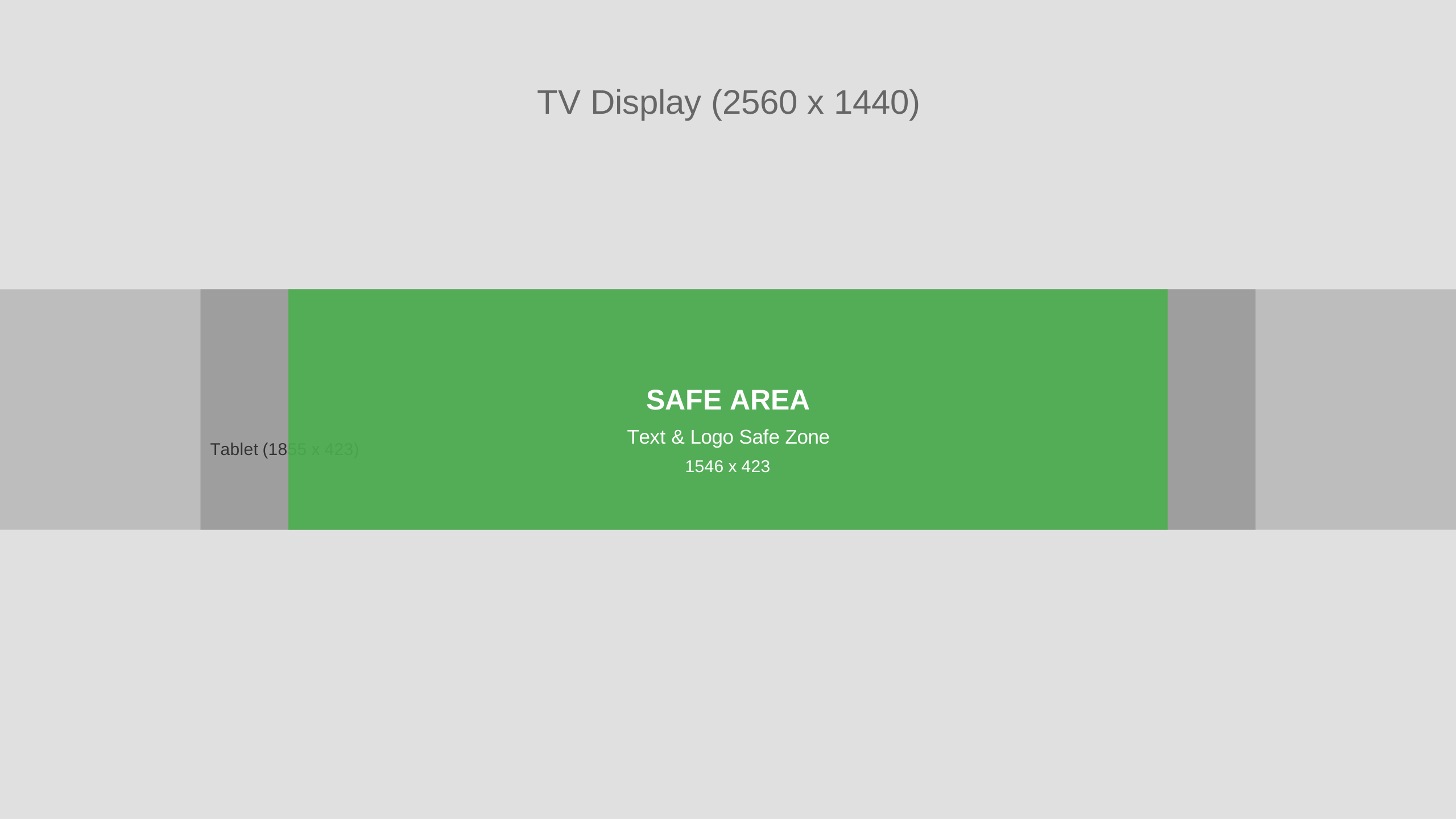
YouTube slices your image differently depending on the device:
- TV: Shows the whole 2560x1440 image.
- Desktop: Shows a wide, thin strip (2560x423).
- Mobile: Shows an even smaller "safe area" (1546x423) in the center.
If your text or logo isn't in that tiny center box, mobile viewers (who make up 70% of your traffic) won't see it.
Step 1: Start with the Right Dimensions
Don't guess. If you start with a random image size, you're setting yourself up for failure.
You need a canvas that is exactly 2560 x 1440 pixels.
If your image is smaller, it will look pixelated on big screens. If it's the wrong aspect ratio, YouTube will force you to crop it awkwardly.
Step 2: Use a Dedicated Tool (Skip the Math)
You could manually measure pixels and draw guide lines in an editor. Or, you could use a tool that does it for you.
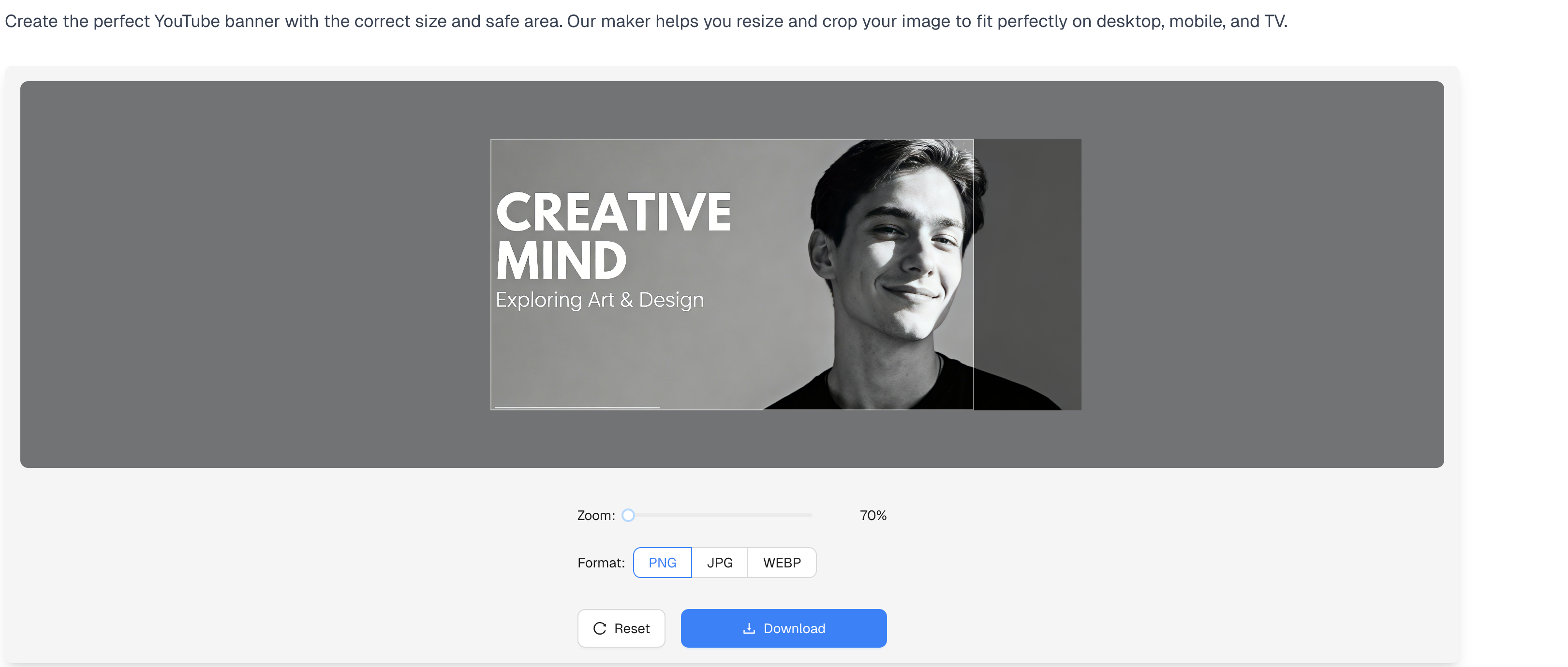
Our YouTube Banner Maker is built specifically for this. It overlays the "Safe Area" right on your image, so you can see exactly what will be cut off before you download.
Step 3: Center Your Core Message
Keep it simple. Your banner needs to answer two questions in under 3 seconds:
- Who are you? (Channel Name)
- What do you do? (Niche/Topic)
Place your channel name and tagline dead center. If you have a posting schedule (e.g., "New Videos Every Friday"), put that right below the tagline.
Pro Tip: Don't put important text near the edges. Even on desktop, the far left and right sides can be covered by your channel icon or social links.
Step 4: Check the "TV" View
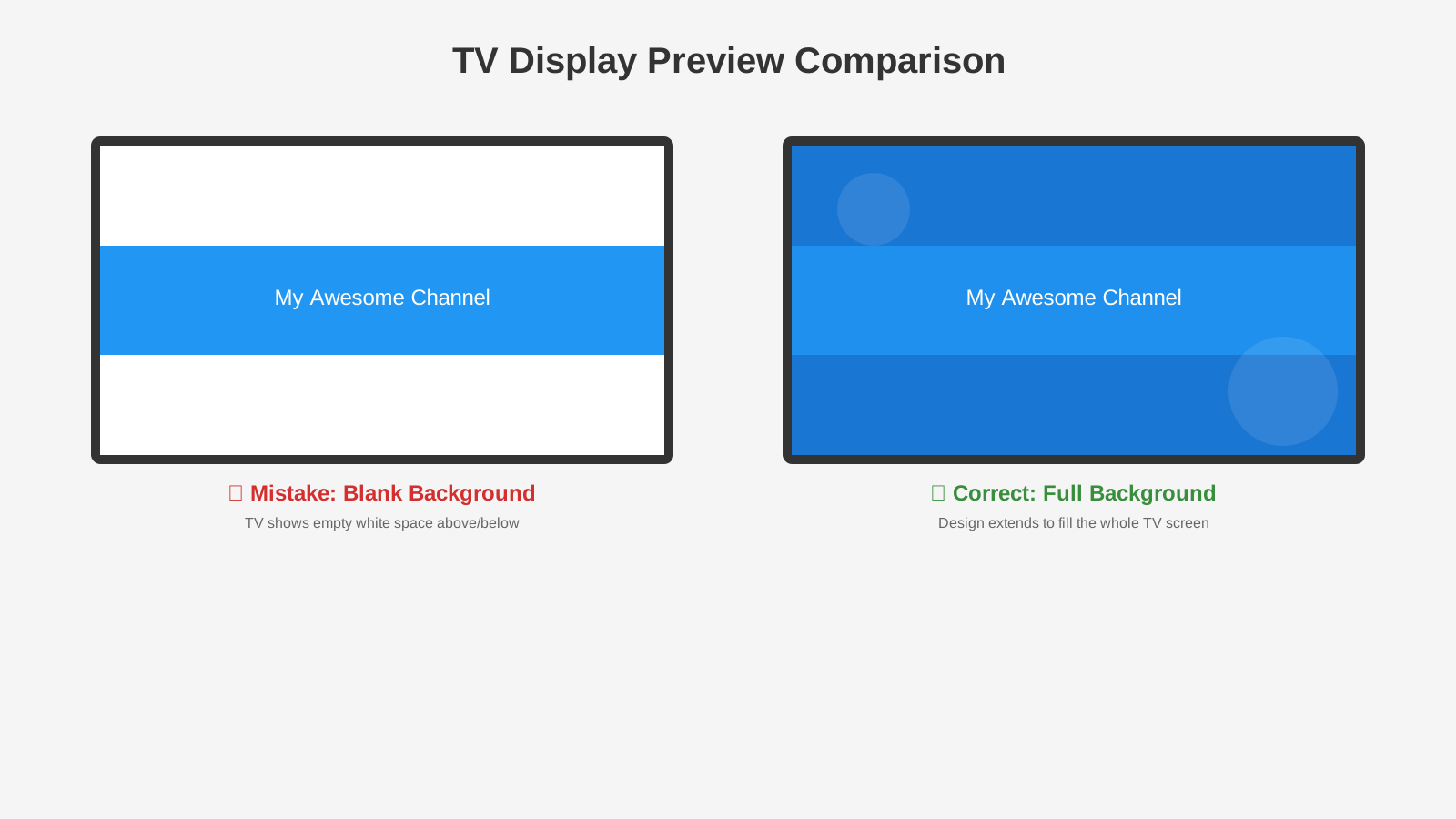
While most people won't watch your channel page on a TV, the background of your banner still matters.
Don't leave the area outside the "Safe Area" blank white. Use a high-quality background image, a texture, or a brand color that extends to the edges. This ensures your channel looks premium on 4K TVs.
Step 5: Export and Upload
Save your file as a JPG or PNG. Keep the file size under 6MB (YouTube's limit).
If you use our tool, we automatically optimize the file size for you, so you don't have to worry about compression artifacts.
Summary
Creating a YouTube banner shouldn't be a guessing game. By focusing on the "Safe Area" and using the right tools, you can create a professional banner that builds your brand and gets you more subscribers.
Ready to try it yourself?
Use our Image Dimensioning Tool now and enjoy a fast and efficient annotation experience.
Create Your Banner Now